Branding and white-label
MSP Backups carries your brand, and can carry each client's. A new install calls itself "MSP Backups" until you rename it. No vendor name is hard-coded in the portals, emails, installers or desktop app.
Your platform brand
In the global admin portal, Settings > General & branding sets:
- Brand name. Used in the portals, the sign-in page, emails (invitations and password resets), the name shown in authenticator apps, SLA report footers, test notifications, alert sources, agent installers and exported configuration.
- Accent colour.
- Default theme, dark or light.
Branding per tenant
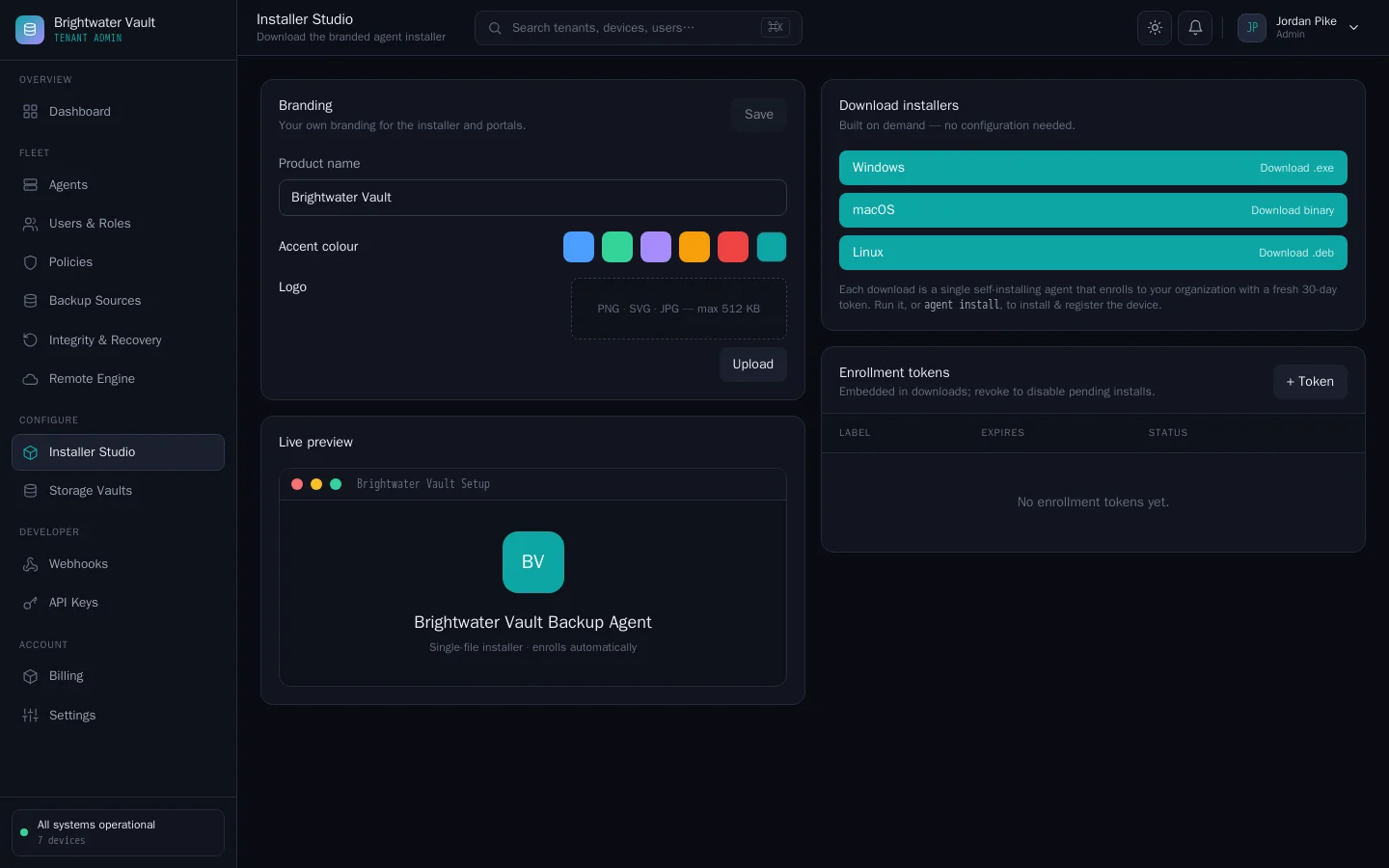
A tenant can have its own product name, accent colour and logo (PNG, SVG or JPG, up to 512 KB). When set, they replace your platform brand for that tenant in:
- the tenant's admin and user portals,
- the Windows desktop app, which also takes the tenant's logo and colour,
- the agent installers downloaded for that tenant, including the Windows service display name and the Linux package description,
- the Windows setup program's code-signing description, if you sign installers.
Set it from either side:
- You: global admin portal, open the tenant's branding.
- The tenant: tenant admin portal, Settings > Branding or the Branding card in Installer Studio, with a live preview.
Code-signing Windows installers
Upload an Authenticode code-signing certificate (PFX and password) in the global admin portal under Installer Studio. From then on, every Windows installer is signed as it is downloaded, with the tenant's product name as the description. If signing fails for any reason, the installer is still served, unsigned.
Names that stay fixed
A few internal identifiers are not branded, because renaming them would break installed agents and existing data:
- the agent binary and service name (
cvn-agent), - the install and configuration folder names,
- the key-derivation labels inside the encryption format.
These appear in file paths and command lines, not in the portals, the desktop app or emails.