Monitoring, alerts and reports
The global admin portal shows the health of every tenant's backups in one place. Problems that need attention right away are also sent to your notification channels.
Overview and fleet health
Overview shows storage across all tenants, live agents and tenants near their cap, over the last 24 hours, 7 days or 30 days.
Fleet Health lists every device across all tenants, ranked by urgency:
| Status | Meaning |
|---|---|
| Failed | The last backup failed and the newest good one is more than 48 hours old |
| Stale | The newest successful backup is more than 48 hours old |
| Never | The device has never completed a backup |
| Offline | No heartbeat from the agent for 15 minutes, with backups otherwise up to date |
| Healthy | A successful backup within the last 48 hours |
It also counts devices whose tenant is near its storage cap, and shows how much space deduplication and compression saved.
Weekly recovery checks
Each agent checks once a week that its latest backup can actually be restored, without writing anything to disk:
- It decrypts the manifest, which proves the manifest is intact and the key is right.
- It downloads every chunk the restore point uses, decrypts and authenticates it, and decompresses it.
- It recomputes each chunk's keyed hash and compares it with the manifest.
A missing object, a decryption failure or a hash mismatch fails the check. The agent runs the check because only the agent holds the key. It reports the result to the server.
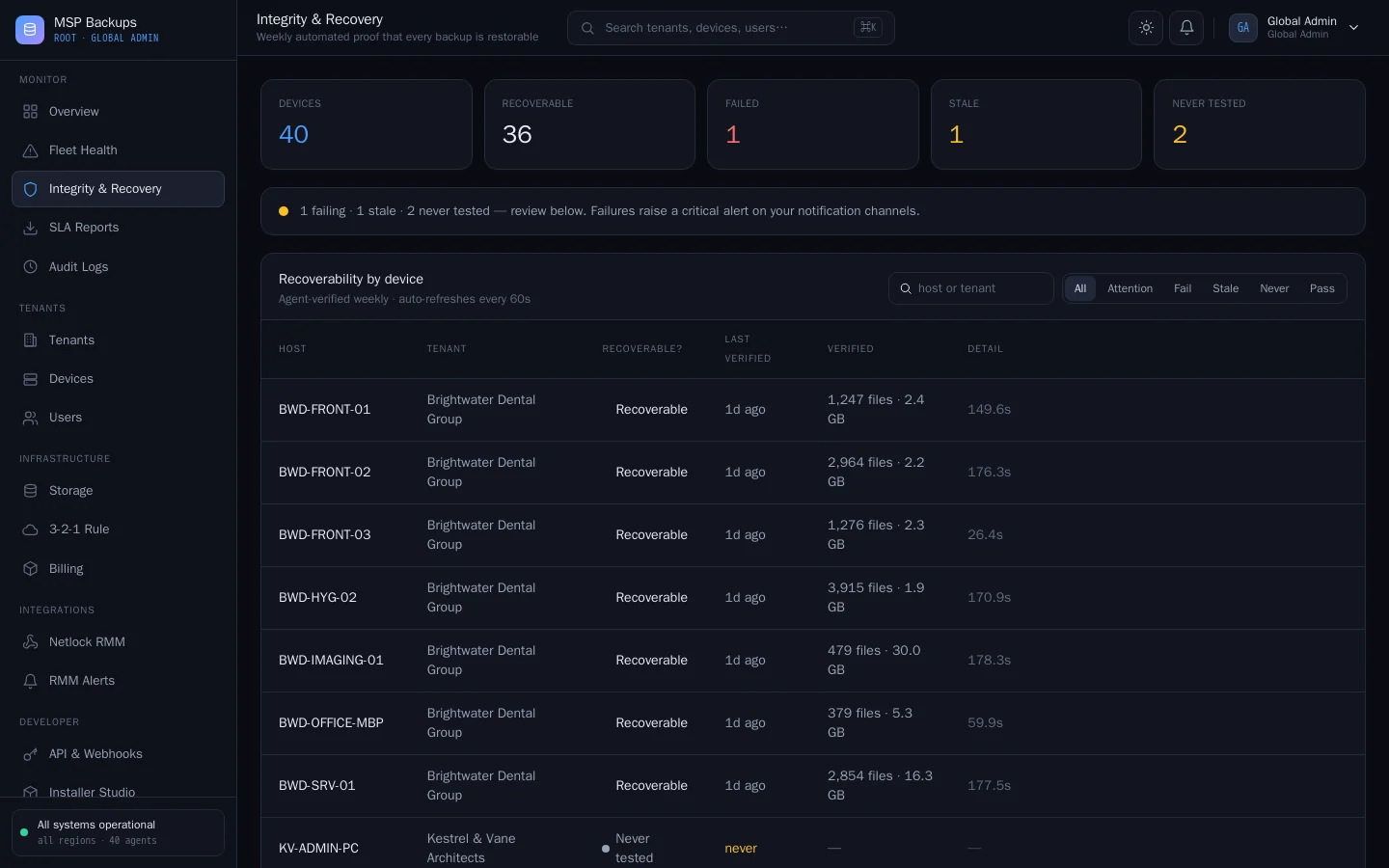
Integrity & Recovery (in the global and tenant admin portals) shows each device as Recoverable, FAILED, Stale (no passing check for more than eight days) or Never tested, with the recent test log. A failed check is sent to your notification channels as critical.
To run a check now on a device: cvn-agent verify --config <path to agent.json>.
SLA reports
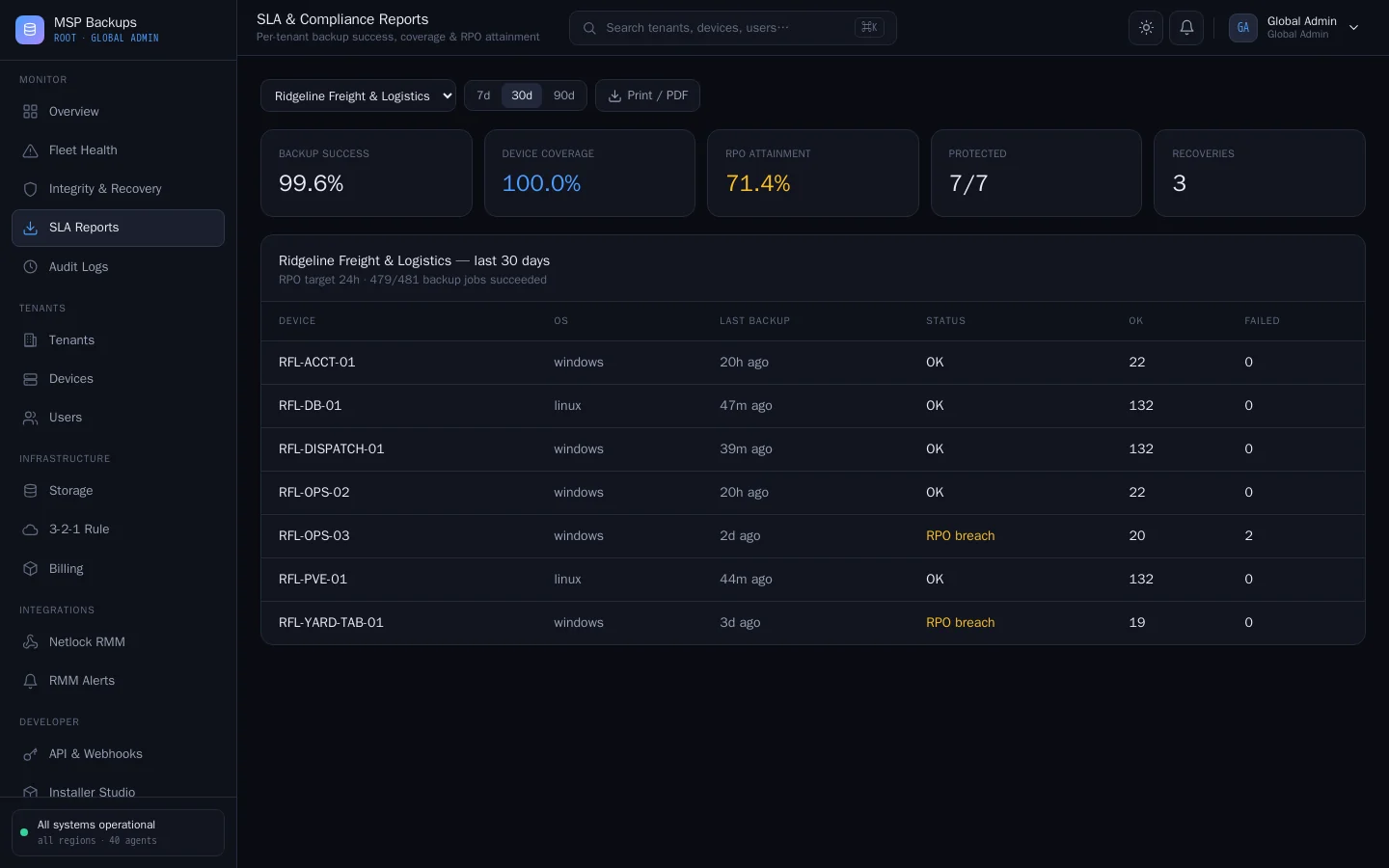
SLA Reports shows, per tenant and period: the share of backup jobs that succeeded, coverage (devices with at least one restore point) and RPO attainment (protected devices whose last backup is within the recovery point objective you set). Open the printable version to save it as PDF or send it to the client. The footer carries your brand name.
Notification channels
In Settings > Notifications, connect any of:
| Channel | Receives |
|---|---|
| Slack | All alerts, through an incoming webhook URL |
| Webhook | All alerts, as JSON to a URL you choose |
| PagerDuty | Critical alerts only, through an Events API routing key |
Turn each channel on, save its endpoint and use Test to send a sample alert. Endpoint URLs and keys are stored encrypted.
Alerts that go to these channels:
| Alert | Severity |
|---|---|
| A canary file was altered on a device | Critical |
| A backup rewrote far more data than usual (possible ransomware) | Critical |
| A weekly recovery check failed | Critical |
| A tenant downloaded more than 20 GB of restores in an hour (egress guard on) | Warning |
Failed and stale backups are not sent to these channels. Watch Fleet Health, connect CVN PSA so they become tickets, or subscribe to webhooks. See API and webhooks.
Activity and job history
- The tenant admin Dashboard shows live and queued jobs.
- Remote Engine shows a live job console per device.
- In the user portal, Activity Log lists the device's recent backups and restores, and Restores lists restores with their method and result.
- Each agent writes
service.lognext to its configuration file.