Your first tenant
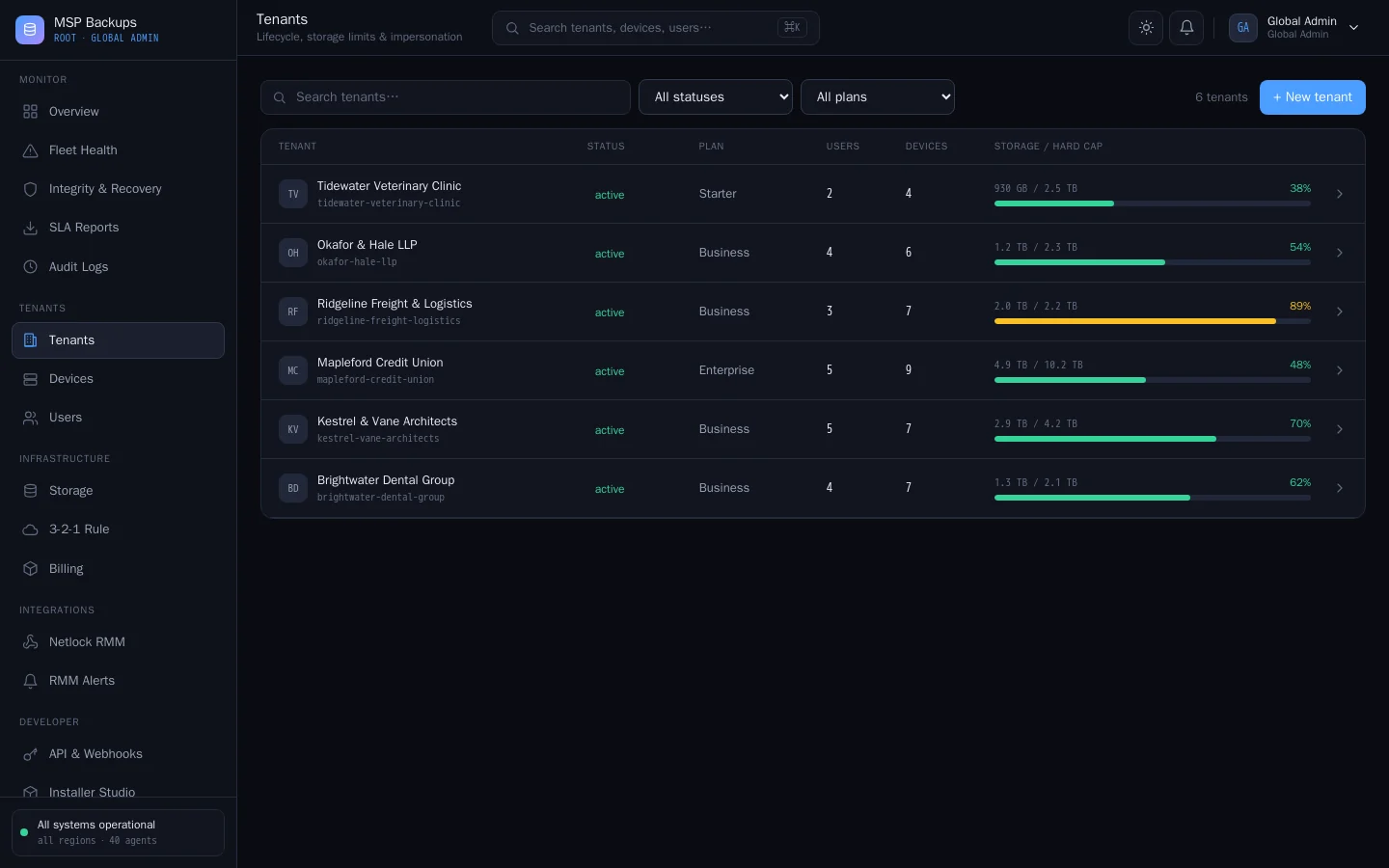
A tenant is one client. Each tenant has its own users, devices, storage cap, policies, branding and audit log, and cannot see any other tenant.
Before you start
- Sign in to the global admin portal as the global admin you created during installation (ships with version 1.0).
- Open My Account and turn on multi-factor authentication.
- Add at least one storage target under Storage. See Storage targets and replication.
Create the tenant
- Open Tenants and choose New tenant.
- Enter the client's name, a plan label and a storage cap in GB. A cap of 0 means unlimited.
- Save. The tenant appears in the list with its usage ring.
If you also run CVN PSA, give the tenant exactly the same name as the client in the PSA. The PSA uses the name to match devices. See CVN PSA.
Give the client an administrator
You have two options:
- Invite an admin. From the tenant, invite the client's administrator by email. They get a link to set their password, valid for 24 hours.
- Manage it yourself. Open the tenant and choose Impersonate. You land in that tenant's admin portal with full rights, and a banner takes you back to the global portal when you are done.
Set the tenant up
In the tenant admin portal:
- Under Storage Vaults, choose which storage target the tenant uses. A tenant can also add its own. See Storage targets and replication.
- Under Policies, create a policy with the schedule, retention and folders to protect. See Policies and schedules.
- Under Settings > Branding, set the client's product name, colour and logo if you want their agent and portal branded for them. See Branding and white-label.
- Under Users & Roles, add the client's staff. See Users and roles.
Then deploy agents.