Your first backup
Once a device has enrolled and has a backup passphrase, it backs up on its schedule. You do not have to wait for the first scheduled run.
Start a backup
Any of these starts one:
- In the tenant admin portal, open Agents and choose Back up now on the device. The command reaches the agent over its live connection, so the device must be online.
- On Windows, open the desktop app and choose Back Up Now. The app shows a progress bar with the time and data remaining, and you can cancel.
- From a shell on the device:
cvn-agent backup --config <path to agent.json> --path <folder>. See Agent command line.
Watch it run
- The tenant admin Dashboard lists active and queued jobs.
- Remote Engine shows a live job console for a device.
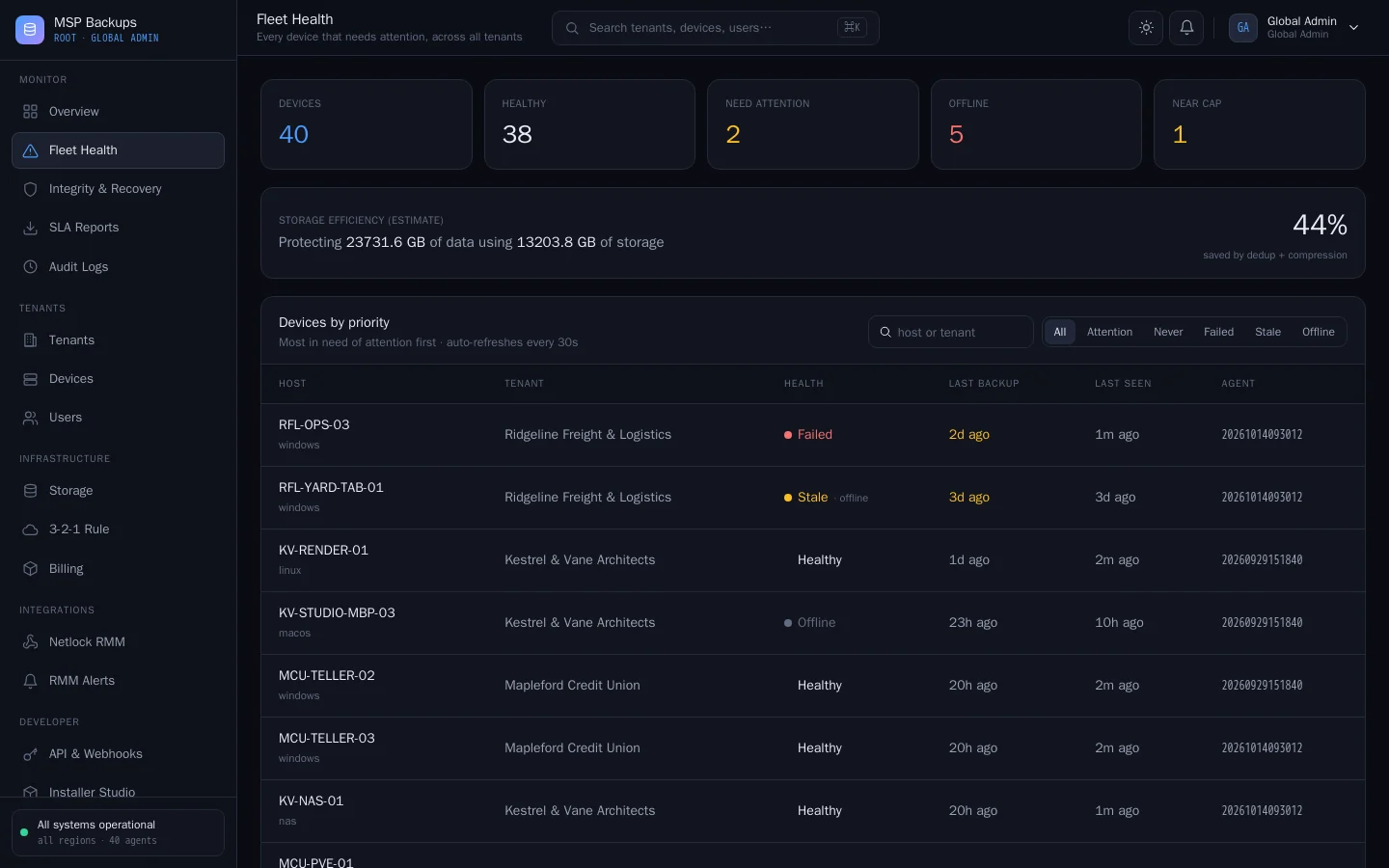
- The global admin Overview and Fleet Health show every tenant's devices, failed and stale ones first.
What a backup does
- The agent fetches its settings from the server: policy, retention, storage target and any backup sources.
- It dumps any database sources into a temporary folder that is captured and then deleted.
- It checks the canary file in each backup folder. If a canary has been altered, the backup stops. See Immutability and ransomware.
- It reads each file, splits it into chunks, compresses and encrypts each new chunk, and uploads it to the storage target.
- It writes an encrypted manifest that lists every file and its chunks.
- It reports the new restore point to the server, which updates the tenant's storage usage.
Check the result
- In the user portal, open Time Machine. The new restore point is on today's date.
- Open it in File Explorer, enter the backup passphrase and download one file. If the file opens, the backup and your passphrase both work.
Within a week the agent also runs its first automatic recovery check. See Monitoring, alerts and reports.